
The article explains how to implement reliable barcode validation in GoCanvas mobile forms by combining reference data, hidden fields, and conditional messaging.
When building mobile forms with barcode scanning, it's critical to ensure that users enter valid barcode values that match your reference data. GoCanvas provides flexible tools for capturing barcodes. Although validation for barcode fields isn't enforced by default, you can implement a smooth validation workflow using a combination of reference data and field conditions to provide error messages when barcodes don't match your reference data.
Some Help Articles to assist you during this process:
- Setting up Barcode Scanning
- Uploading Reference Data
- How to properly format your reference data file
- How to use Field Conditions
Step by Step
- Prepare your Reference Data by adding an extra column named "Validation" and add the value "1" to every row. Please remember that this column should be after the column with your barcode values.
- Upload your Reference Data into GoCanvas
- Access the Form Builder for your Form
- Setting Up the Barcode Field
- Add a Barcode field in your GoCanvas form using the Builder. You can do this by selecting "+ Add Field," choosing "Barcode," and dragging it to the desired screen or section.
- Name the barcode field for easy reference. This will let users scan codes directly with their mobile device's camera using the "Capture Barcode" button.
- Tip: If you want to prevent manual barcode entry, set the field to Read Only.
- Map Your Barcode with Reference Data
- Prepare a reference data file (Google Sheet or CSV) containing all valid barcode values. For example:
- Map the Barcode field to the corresponding barcode column in your reference file by expanding the Reference Data menu in the field settings.
- Prepare a reference data file (Google Sheet or CSV) containing all valid barcode values. For example:
- Insert a hidden Number field and name it "Validation".
- Set its Reference Data to the "Validation" column, and reference the barcode field as the Reference Field.
- Set its Reference Data to the "Validation" column, and reference the barcode field as the Reference Field.
- Insert a static text field and set the value “Your barcode has not been entered or is invalid."
- Set Condition Field to "Validation"
- Set Condition to "Not Equal"
- Set Condition Value to "1"
- Insert another static text field and set the value “Your barcode is valid.”
- Set Condition field to "Validation"
- Set Condition to "Equals"
- Set Conditional Value to "1"
- Finally, map the rest of your reference data to your other fields and complete the your Form build.
Results
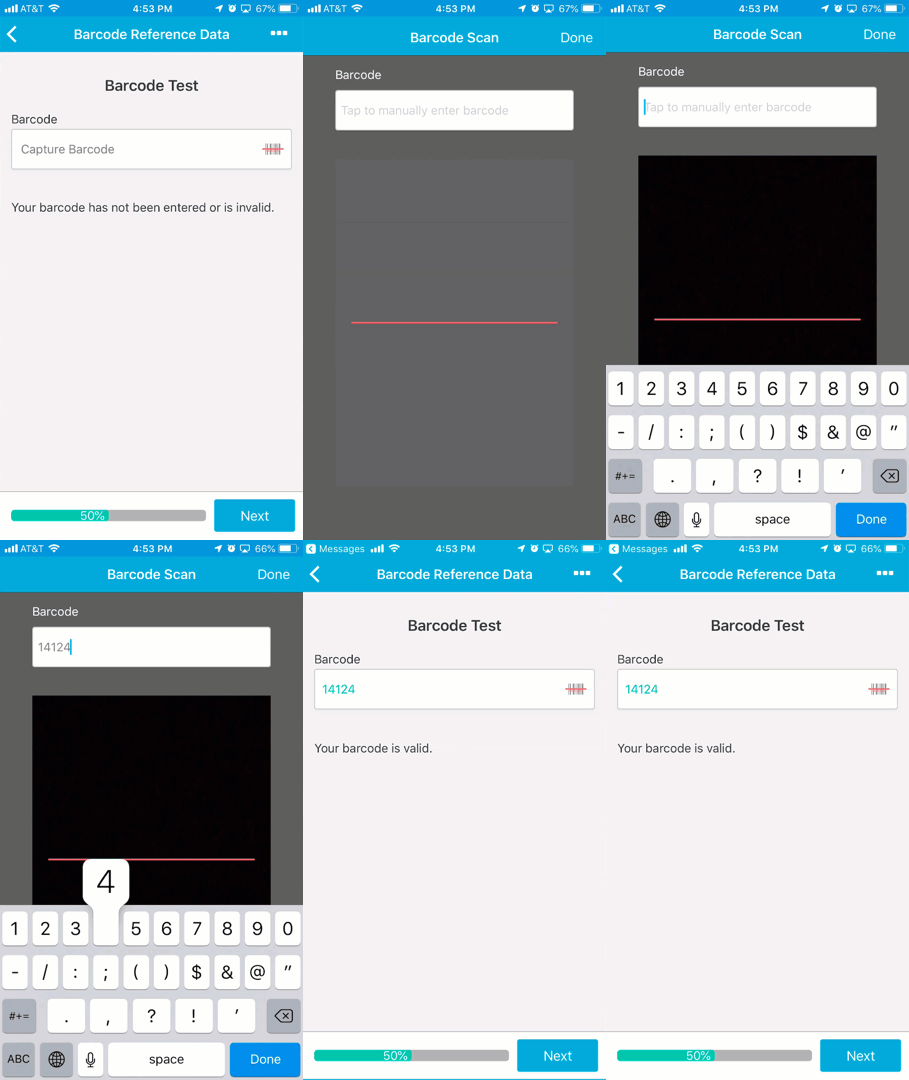
With these steps, when a user scans a valid barcode, the success message displays. If a barcode is invalid or missing, the error message appears instead. This is what it looks like in the App once it's all set up:
In Summary
- Barcode field: Captures barcode values.
- Reference Data: Holds your list of valid barcodes (and supporting information).
- Validation logic: Uses a hidden field and conditional messaging to inform users if their scan is invalid—without requiring custom programming.
Comments
0 commentsPlease sign in to leave a comment.