
Each time we add a customer to our reference data we need to "sync" to our go canvas.
This then sends a notification to staff to sync. First since we add customers daily the alerts drive our staff nuts! Next if we're constantly syncing and re-syncing, Why not make automate the SYNC and eliminate the constant ALERT...
0
Comments
Please sign in to leave a comment.
Hi Tonya,
Thank you so much for bringing this to our attention! You have actually stumbled upon unexpected behavior and I have escalated this to our product team to troubleshoot. In the meantime, there is a quick fix to turning off editing alerts that requires just one additional sheet to your Google Sheet. After you add that extra sheet, go back to your Reference Data & Images tab, scroll to the sheet you need to sync, and click the Edit button.
In the gif above, it shows that adding that additional sheet reveals the checkbox for alerting your users after you select the correct sheet. The sheet does not need to have anything important as it will not be added to your account. It simply reveals the correct editing page so you can uncheck that alert button. As a default, it should be unchecked but it seems like it got triggered somehow for you and I'm so sorry for that frustration!
As for the automatic sync, that is something that we are collecting feedback on for future updates. You are not alone in requesting this and our product team is very interested in continuing to hear this request as it helps them prioritize. Thank you again for bringing this to the community!
We are only adding to an existing google sheet to add MORE data. We then push the re-sync button to import the changes. notice goes out to everyone. I don't seen a "box" that I can stop the alerts.
Hi Tonya,
Sorry that I wasn't clearer, the checkbox to turn off the alerts is not located on the page in your screenshot. There is one step you must do in Google Sheets before you can proceed. If you don't have two sheets in your Google Sheet, you will need to click the "+" at the bottom left of your Google Sheet.
Then please go to the main page for the Reference Data & Images tab and click the little "Edit" button located on the right side of the row associated with this sheet. The button will look like a little pencil on a square.
In the gif I posted in my first comment, it goes through the process of all the pages you will get as your go through the Edit flow so you can see the entire screen, but included below are more specific screenshots. After you click the Edit button, you will be prompted to choose the radio button "Import from Google Sheets" and then hit "Next."
Next, you will choose the file from your list of Google Sheets and hit "Import."
Then you will be prompted to choose the right sheet, the step that you completed first, and hit "Import". When you don't have a second sheet, the checkbox does not appear on the next page. This is issue that we discovered and will be fixing.
After you choose the right sheet, you will arrive at the Edit page where you can make sure that the second checkbox at the bottom is unchecked and then hit "Save."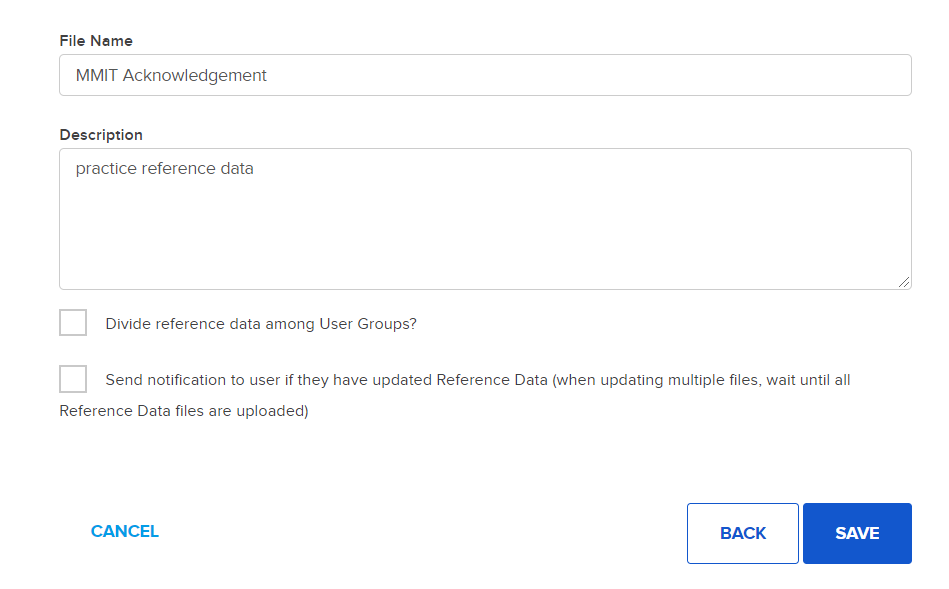
Once this is complete, you will be able to hit "Resync" on the page in your screenshot when you make changes to the Google Sheet and it will not alert your users every time you resync. Please let me know if you require additional assistance!